Halaman

Kamis, 25 April 2013

cara instal ulang windows 7_anwardsenop


Kali ini ane mau kasi tau cara install ulang komputer/laptop km,
Jika kita ingin menginstall ulang sebuah komputer, ataupun laptop, terlebih dahulu kita akan menentukan media/devices yang digunakan untuk menginstal sebuah OS, Bisa dengan CD/DVD dan juga dengan Flashdisk.

Setelah kita tentukan devices nya, berikutnya adalah mengatur pilihan first boot pada komputer.
Cara Pertama
Berikut adalah cara mengatur first boot pada komputernya ke CD/DVD :
1. Restart Komputermu atau saat  awal Menyala Tekan Tombol F2 untuk masuk ke menu Setup di menu Bios, atau terkadang harus menekan Tombol Del, dengan tulisan "Del To Setup", dll sesuai menu di komputermu.

2. Dalam  menu Bios akan ada tampilan seperti di bawah ini mungkin akan berbeda di setiap komputer, tapi tinggal sesuaikan saja


3. Di menu Boot, pilih Boot Device Priority, pada Menu First Boot pastikan terpilih dengan memakai CDROOM.


tekan Tombol F10 untuk menyimpan dan exit, maka komputermu akan Merestart.

Cara kedua
  1. Tancapkan USB Flashdisk yang telah berisi file Sistem yang telah dibuat sebelumnya. Jika menggunakan CD/DVD bisa dimasukkan nanti.
  2. Nyalakan komputer atau notebook
  3. segera setelah komputer dinyalakan tekan tanpa jeda tombol ESC dan F1 bergantian berulang-ulang. Akan muncul jendela biru kecil yang menawarkan kita mau boot dari mana: “Please select your boot device”
  4. Gunakan tombol panah naik turun untuk memilih. Dari hardisk, Flashdisk (merek flashdisk akan tercantum) atau cd/dvd.
  5. Jika memilih boot dari cd/dvd, masukkan dulu cd/dvd sistem, barulah tekan Enter.
  6. Tunggu sampai proses boot selesai.

Cara ketiga
  1. Tancapkan usb flasdisk sistem, untuk cd/dvd bisa menyusul.
  2. nyalakan komputer/notebook
  3. segera setelah menyalakan komputer/notebook tekan F2 berkali-kali agar tidak ketinggalan masuk ke BIOS. (Tombol yang ditekan untuk masuk BIOS pada komputer/laptop lain mungkin berbeda, ada yang menggunakan tombol Del ataupun kombinasi beberapa tombol).
    Setelah masuk ke menu BIOS, karena disini tujuan utamanya tidak mengatur first boot priority maka gunakan tombol panah ke kanan untuk memilih link Exit lalu tekan Enter
    ternyata sebelum benar-benar keluar dari BIOS, ada pilihan untuk boot dari hardisk atau cd/dvd ataukah dari usb flashdisk yang telah ditancapkan tadi.
    Masukkan cd/dvd sistem jika ingin boot dari cd/dvd.
    Gunakan tombol panah atas bawah untuk memilih.
    Setelah terpilih tekan Enter
  4. tunggu sampai proses boot selesai.
Jika sudah mengatur Boot menu nya baru kita melakukan tahapan install ulang windows 7 :
1. Pertama atur First Boot komputer anda ke DVD, baca di artikel Cara untuk mengatur pemilihan first boot komputer. Restart komputer.
2.Ketika komputer kembali menyala akan tampil perintah "Press any key to boot from CD or DVD... " segera klik pada sembarang tombol keyboard, dan akan berikutnya akan tampil proses pemuatan file seperti gambar dibawah ini:


 3. Berkutnya akan tampil menu pengisian Bahasa, format waktu, dan Metode Keyboard, lakukan pengisiannya seperti gambar dibawah ini, dan pilih Next :


4. Pilih Install now, maka akan tampil menu pilihan persetujuan, centang menu I accept the license terms, dan pilih Tombol Next.
5. Sekarang pilih dan klik menu Custom Advanced

6. Berikutnya akan tampil menu Drive Options seperti ini:

Saya akan jelaskan terlebih dahulu yang harus anda lakukan karena di setiap komputer pengaturan atau banyaknya drive pasti akan berbeda-beda, Yang perlu anda bedakan atau ketahui adalah Drive System Reserved dan Drive C untuk install windows 7 nya.
7. Sekarang pilih menu drive options, Pilih Disk 0 Partition 1 System Reserved dan pilih Format.
8. Pilih Disk 0 Partition yang anda yakini sebagai Drive C dan pilih Format.
9. Sekarang pilih Drive C yang telah di Format tadi dan klik tombol Next.

10. Setelah sistem mengkopi dan instalasi wondows 7, komputer akan merestart, saat menyala akan tampil kembali perintah "Press any key to boot from CD or DVD... " dan jangan pijit tombol apapun, biarkan sampai tampil seperti gambar dibawah ini:


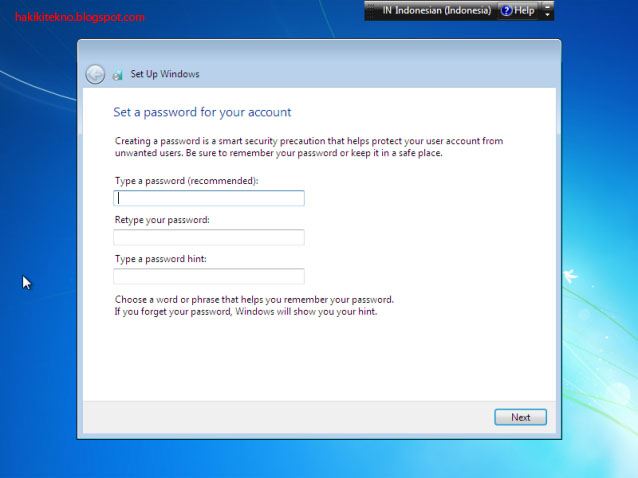
11. Sekarang kita masuk ke menu pengisian personalisasi windows 7 anda, pengisiannya cukup ikuti seperti gambar-gambar dibawah ini dan Step by step sampai windows 7nya berhasil terinstal :


Saya sarankan pengisian password dikosongkan terlebih dahulu dan pilih Next


Masukkan product key jika anda sudah memilikinya, atau skip jika anda ingin mengisikannya nanti.


Pilih Ask me later


Atur waktu dan timezone seperti gambar dibawah ini :

Tunggu beberapa saat, dan Windows 7 pun berhasil terinstall ulang di komputer anda.

Ok untuk kali ini ane rasa cukup yeaa smoga bermanfaat untuk ente.....daaaaahhh...!!!

Rabu, 24 April 2013

Kumpulan Fungsi Kombinasi Tombol Keyboard Komputer_anwardsenop

Kumpulan Fungsi Kombinasi Tombol Keyboard Komputer


Mungkin temen temen pernah ngalamin kalo di computer ente gak ade mousenya, pasti bingungkan gimana cara agar bisa ngejalanin computer ente,, nah kali ini ane akan ngasih tau kombinasi tombol pada keyboard computer/laptop,, ok langsung aje yeee
·         CTRL+A (Select all)
·         CTRL+C (Copy)
·         CTRL+X (Cut)
·         CTRL+V (Paste)
·         CTRL+Z (Undo)
·         CTRL while dragging an item (Copy the selected item)
·         CTRL+SHIFT while dragging an item (Create a shortcut to the selected item)
·         CTRL+LEFT ARROW (Move the insertion point to the beginning of the previous word)
·         CTRL+DOWN ARROW (Move the insertion point to the beginning of the next paragraph)
·         CTRL+UP ARROW (Move the insertion point to the beginning of the previous paragraph)
·         CTRL+SHIFT with any of the arrow keys (Highlight a block of text)
·         CTRL+F4 (Close the active document in programs that enable you to have multiple documents open simultaneously)
·         CTRL+ESC (Display the Start menu)
·         ALT+ENTER (View the properties for the selected item)
·         ALT+F4 (Close the active item, or quit the active program)
·         ALT+ENTER (Display the properties of the selected object)
·         ALT+SPACEBAR (Open the shortcut menu for the active window)
·         ALT+SPACEBAR (Display the System menu for the active window)
·         ALT+Underlined letter in a menu name (Display the corresponding menu)
·         ALT+TAB (Switch between the open items)
·         ALT+ESC (Cycle through items in the order that they had been opened)
·          DELETE (Delete)
·         SHIFT+DELETE (Delete the selected item permanently without placing the item in the Recycle Bin)
·         SHIFT with any of the arrow keys (Select more than one item in a window or on the desktop, or select text in a document)
·         SHIFT+F10 (Display the shortcut menu for the selected item)
·         F2 key (Rename the selected item)CTRL+RIGHT ARROW (Move the insertion point to the beginning of the next word)
·         F3 key (Search for a file or a folder)
·         F4 key (Display the Address bar list in My Computer or Windows Explorer)
·         F5 key (Update the active window)
·         F6 key (Cycle through the screen elements in a window or on the desktop)
·         F10 key (Activate the menu bar in the active program)
·         RIGHT ARROW (Open the next menu to the right, or open a submenu)
·         LEFT ARROW (Open the next menu to the left, or close a submenu)
·         BACKSPACE (View the folder one level up in My Computer or Windows Explorer)
·         ESC (Cancel the current task)
·         SHIFT when you insert a CD-ROM into the CD-ROM drive (Prevent the CD-ROM from automatically playing)

Dialog Box Keyboard Shortcuts
  • CTRL+TAB (Move forward through the tabs)
  • CTRL+SHIFT+TAB (Move backward through the tabs)
  • TAB (Move forward through the options)
  • SHIFT+TAB (Move backward through the options)
  • ALT+Underlined letter (Perform the corresponding command or select the corresponding option)
  • ENTER (Perform the command for the active option or button)
  • SPACEBAR (Select or clear the check box if the active option is a check box)
  • Arrow keys (Select a button if the active option is a group of option buttons)
  • F1 key (Display Help)
  • F4 key (Display the items in the active list)
  • BACKSPACE (Open a folder one level up if a folder is selected in the Save As or Open dialog box)

Microsoft Natural Keyboard Shortcuts
  • Windows Logo (Display or hide the Start menu)
  • Windows Logo+BREAK (Display the System Properties dialog box)
  • Windows Logo+D (Display the desktop)
  • Windows Logo+M (Minimize all of the windows)
  • Windows Logo+SHIFT+M (Restore the minimized windows)
  • Windows Logo+E (Open My Computer)
  • Windows Logo+F (Search for a file or a folder)
  • CTRL+Windows Logo+F (Search for computers)
  • Windows Logo+F1 (Display Windows Help)
  • Windows Logo+ L (Lock the keyboard)
  • Windows Logo+R (Open the Run dialog box)
  • Windows Logo+U (Open Utility Manager)

Microsoft Internet Explorer Navigation
  • CTRL+B (Open the Organize Favorites dialog box)
  • CTRL+E (Open the Search bar)
  • CTRL+F (Start the Find utility)
  • CTRL+H (Open the History bar)
  • CTRL+I (Open the Favorites bar)
  • CTRL+L (Open the Open dialog box)
  • CTRL+N (Start another instance of the browser with the same Web address)
  • CTRL+O (Open the Open dialog box, the same as CTRL+L)
  • CTRL+P (Open the Print dialog box)
  • CTRL+R (Update the current Web page)
  • CTRL+W (Close the current window)

Accessibility Keyboard Shortcuts
  • Right SHIFT for eight seconds (Switch FilterKeys either on or off)
  • Left ALT+left SHIFT+PRINT SCREEN (Switch High Contrast either on or off)
  • Left ALT+left SHIFT+NUM LOCK (Switch the MouseKeys either on or off)
  • SHIFT five times (Switch the StickyKeys either on or off)
  • NUM LOCK for five seconds (Switch the ToggleKeys either on or off)
  • Windows Logo +U (Open Utility Manager)

Windows Explorer Keyboard Shortcuts
  • END (Display the bottom of the active window)
  • HOME (Display the top of the active window)
  • NUM LOCK+Asterisk sign (*) (Display all of the subfolders that are under the selected folder)
  • NUM LOCK+Plus sign (+) (Display the contents of the selected folder)
  • NUM LOCK+Minus sign (-) (Collapse the selected folder)
  • LEFT ARROW (Collapse the current selection if it is expanded, or select the parent folder)
  • RIGHT ARROW (Display the current selection if it is collapsed, or select the first subfolder)

Shortcut Keys for Character Map
  • RIGHT ARROW (Move to the right or to the beginning of the next line)
  • LEFT ARROW (Move to the left or to the end of the previous line)
  • UP ARROW (Move up one row)
  • DOWN ARROW (Move down one row)
  • PAGE UP (Move up one screen at a time)
  • PAGE DOWN (Move down one screen at a time)
  • HOME (Move to the beginning of the line)
  • END (Move to the end of the line)
  • CTRL+HOME (Move to the first character)
  • CTRL+END (Move to the last character)
  • SPACEBAR (Switch between Enlarged and Normal mode when a character is selected)

Microsoft Management Console (MMC) Main Window Keyboard Shortcuts
  • CTRL+O (Open a saved console)
  • CTRL+N (Open a new console)
  • CTRL+S (Save the open console)
  • CTRL+M (Add or remove a console item)
  • CTRL+W (Open a new window)
  • F5 key (Update the content of all console windows)
  • ALT+SPACEBAR (Display the MMC window menu)
  • ALT+F4 (Close the console)
  • ALT+A (Display the Action menu)
  • ALT+V (Display the View menu)
  • ALT+F (Display the File menu)
  • ALT+O (Display the Favorites menu)

MMC Console Window Keyboard Shortcuts
  • CTRL+P (Print the current page or active pane)
  • ALT+Minus sign (-) (Display the window menu for the active console window)
  • SHIFT+F10 (Display the Action shortcut menu for the selected item)
  • F1 key (Open the Help topic, if any, for the selected item)
  • F5 key (Update the content of all console windows)
  • CTRL+F10 (Maximize the active console window)
  • CTRL+F5 (Restore the active console window)
  • ALT+ENTER (Display the Properties dialog box, if any, for the selected item)
  • F2 key (Rename the selected item)
  • CTRL+F4 (Close the active console window. When a console has only one console window, this shortcut closes the console)

Remote Desktop Connection Navigation
  • CTRL+ALT+END (Open the m*cro$oft Windows NT Security dialog box)
  • ALT+PAGE UP (Switch between programs from left to right)
  • ALT+PAGE DOWN (Switch between programs from right to left)
  • ALT+INSERT (Cycle through the programs in most recently used order)
  • ALT+HOME (Display the Start menu)
  • CTRL+ALT+BREAK (Switch the client computer between a window and a full screen)
  • ALT+DELETE (Display the Windows menu)
  • CTRL+ALT+Minus sign (-) (Place a snapshot of the active window in the client on the Terminal server clipboard and provide the same functionality as pressing PRINT SCREEN on a local computer.)
  • CTRL+ALT+Plus sign (+) (Place a snapshot of the entire client window area on the Terminal server clipboard and provide the same functionality as pressing ALT+PRINT SCREEN on a local computer.
Mungkin yang ane tau Cuma itu kalo ada yang mau nambahin taroo aja di pos komentar… ok ane pamit dulu yeeee…..    semoga bermanfaat,,,,,

Sabtu, 20 April 2013

cara menginstal driver_anwardsenop

Cara Install Driver Pada Komputer Laptop
Cara Install Driver Pada Komputer Laptop. Membeli laptop maupun komputer desktop seharusnya mendapatkan software bawaan komputer atau laptop atau biasa dikenal dengan driver tersebut, yang sudah disertakan dari pabrikan, namun akhir-akhir ini di kota Denpasar setiap kali saya membeli laptop, selalu saja tidak disertakan dengan software driver untuk laptop, katanya memang tidak ada driver jadi download saja di internet, tetapi kalau mau beli dengan drivernya ditambah 100 ribu rupiah. Eh ternyata driver yang seharusnya menjadi paket penjualan laptop justru di jual lagi secara terpisah. Apabila sobat menemukan penjual seperti di atas, sebaiknya jangan diterima atau dibeli ditempat itu, beli saja ditempat lain yang mau memberikan driver secara cuma-cuma, karena itu merupakan paket laptop yang tidak bisa terpisahkan. Tidak ada driver bukan berarti komputer atau laptop tersebut tidak bisa digunakan, bisa, tetapi tidak optimal. Apabila tidak ada driver kita tentu akan mengalami kesulitan apabila melakukan installasi ulang pada laptop atau komputer kita, karena setiap installasi ulang laptop atau komputer pasti membutuhkan driver. ane kasih tipsnya nih gi mana cara menginstal driver yang baik n benar.. langsung ajj jangan tanpa banyak cakap........

     Ada banyak cara installasi driver pada komputer, namun disini saya menjelaskan cara termudah dalam melakukan installasi.
 1. Masukan kepingan CD driver pada CD-ROM/RW drive

 2. Klik Start

 3. Klik kanan pada My Computer (windows xp), Computer (windows 7)

 4. Klik Properties

5. Klik tab Hardware-Device Manager (windows x), Device Manager (windows 7)

6. Klik kanan pada komponen yang bermasalah (ber-tanda tanya)

7. Klik Update Driver

8. Klik lingkaran kecil No, not this time kemudian Next

 9. Klik lingkaran kecil Install from a list of spesific location (Advanced)

10. Klik/centang Search removable media (floppy, CD_ROM...) dan Include this location in the search

11. Klik Browse kemudian cari file driver pada cd-rom/rd drive (sesuaikan dengan driver yang dibutuhkan, misalnya sound, vga, chipset dll) kemudian klik OK dan Next

12. Tunggu hingga proses installasi selesai dan klik Finish
Selesai sudah proses installasi driver pada laptop maupun komputer desktop, apabila ada muncul pesan untuk melakukan restart komputer, klik saja restart komputer. Demikian penjelasan cara melakukan installasi driver pada komputer dan laptop,

           ok semoga bermanfaat bagi sobat semua yahh..........

cara mengubah kapasitas memory/flasdisk 1/2 gb menjadi 4 gb_anwardsenop

Tidak puas dengan kapasitas penyimanan memori kamu, mau beli yang baru gak punya uang,, tenang ane kasih tipsnya nih cara agar kamu bias menambah kapasitas memory kamu ok langsung ajja deh…
1. pertama Siapin dulu toolnya Download disini

2. Download dulu ampe selese

3. Extract data yg tadi di download

4. colokin dulu flashdisk/memorynya

5. pastikan data yang ada di flashdisk/memory sudah di back up

6. setelah itu cari Driver Increaser - Yazid Bustomi.bat

7. Setelah itu akan muncul DOS 8. Masukan Nama Flashdisk Ente Example : HansJr

9. Masukan type drive ente Example : G

10. Masukin Lagi drive ente

11. tunggu ampe proses selese (ga lama kok)

12. Eject Flashdisk ente

13. abis itu liat hasilnya ABRAKADABRA …..

Bukan sulap bukan sihir memory ente sudah berubah menjadi 4 GB
              SEMOGA BERMANFAAT YEE…..